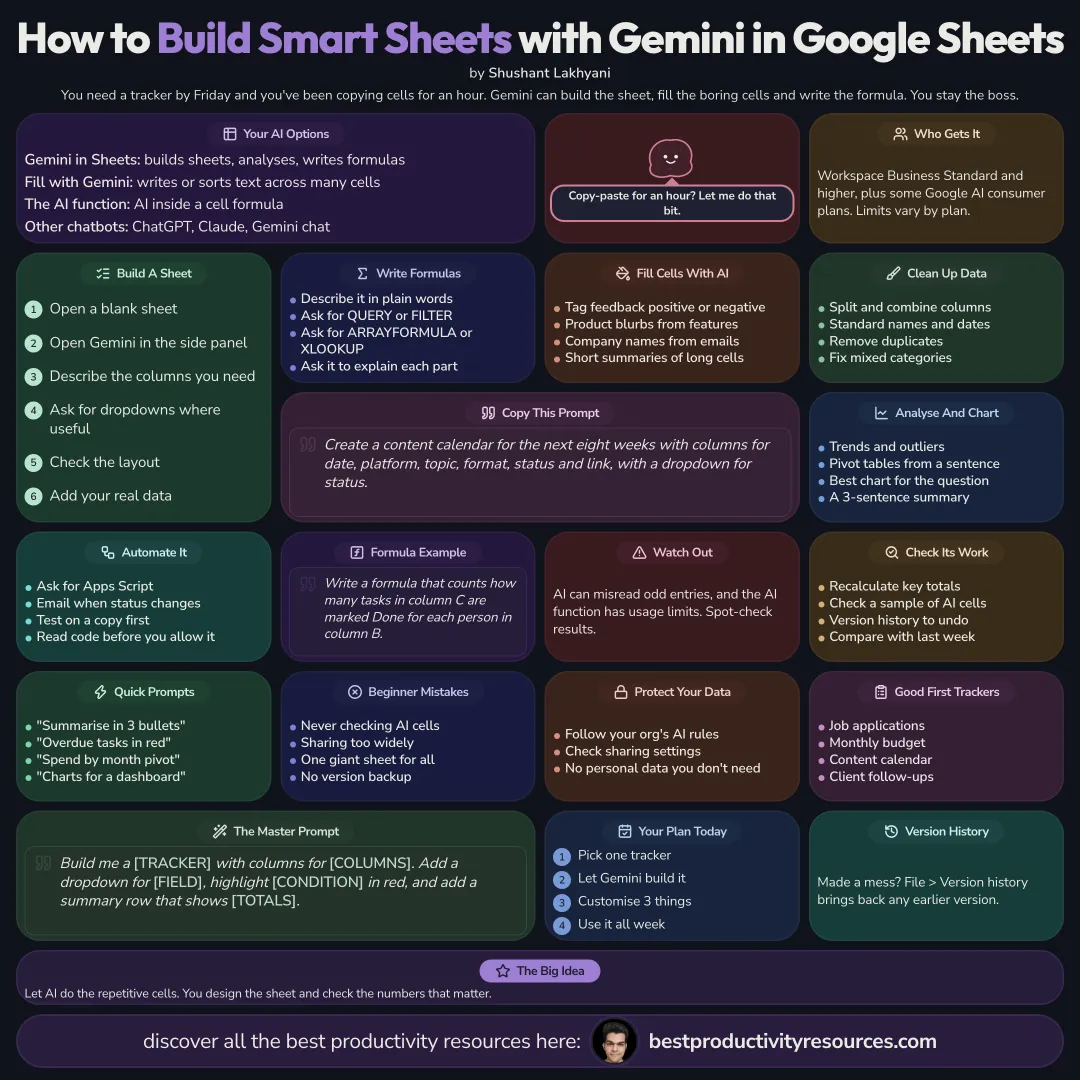
Use Gemini in Sheets and other AI tools to build sheets, write formulas, fill data, and analyse faster
10 bite-sized sections
2 min read
Free, no signup
Short answer
A free guide to using AI for Google Sheets in 2026: Gemini in Sheets, building a sheet from a prompt, Fill with Gemini, the AI function, formulas, cleaning data, analysis and charts, Apps Script automation, plans and limits, checking AI work, privacy, and prompts.
Builds sheets, answers questions, analyzes data, and writes formulas
Fill with Gemini
Generates, categorizes, or summarizes text across many cells at once
The AI function
A cell function that runs AI on your data
Other assistants
ChatGPT, Claude, or Gemini chat for help with formulas and analysis
Gemini in Sheets comes with Google Workspace Business Standard and higher, and with some Google AI consumer plans. Limits and features depend on your plan.
Hand AI the repetitive cells. Keep the sheet design yourself.
02
Build a sheet from one prompt
Build a content calendar for the next eight weeks with columns for date, platform, topic, format, status, and link, plus a status dropdown.
03
Write formulas
Describe what you need in plain words
Request QUERY, FILTER, ARRAYFORMULA, or XLOOKUP where they help
Have Gemini explain each part
Write a formula that counts, for each person in column B, how many of their tasks in column C are marked Done.
04
Fill cells with AI
Sort feedback into positive, neutral, or negative
Turn feature lists into short product descriptions
Pull company names out of email addresses
Summarize long text cells
Spot-check the results. AI can misread unusual entries, and the AI function has usage limits.
05
Clean your data
Split and merge columns
Standardize names, dates, and number formats
Remove duplicates
Fix inconsistent categories
06
Analyze and chart
Ask Gemini to surface trends and outliers
Build pivot tables from a plain-language request
Ask which chart best answers your question
Summarize the results in a few sentences
07
Automate with Apps Script
Have AI write Apps Script for repeated tasks
Examples: email someone when a status changes, or tidy up new rows
Test it on a copy first
Read the code before you authorize it
08
Check the AI’s work
Recalculate the key totals
Review a sample of AI-filled cells
Undo mistakes with version history
09
Protect your data
Follow the AI rules your organization sets
Share sheets that hold personal data no more widely than needed
Review sharing settings before you use AI features
10
Try these prompts
“Summarize this sheet in three bullets.”
“Turn overdue tasks red.”
“Build a pivot table of spend by category and month.”
“Recommend charts for a weekly dashboard.”
The golden rule
Never let AI fill a sheet you do not check. Use it for speed, then verify the numbers that matter.
Gemini
Build
Formulas
Fill
Clean
Analyze
Apps Script
Ask Gemini to build one tracker you need this week, then customize it yourself.
What does “How to Use AI for Google Sheets” cover?
It has 10 sections, starting with “Know your AI options in Sheets”, “Build a sheet from one prompt”, “Write formulas” and “Fill cells with AI”, plus 6 more sections.
How long does it take to read?
About 2 minutes. Every section is a short, self-contained card, so you can jump straight to the part you need.
Is this guide free?
Yes. The full guide is free to read on this page, with no sign-up.
For research and ideas only. Results vary and nothing here is a promise of income. See our Disclaimer.
See you Monday!
Weekly newsletter
Everything new, every Monday.
One short email every Monday with everything shipped that week: new free tools and websites, new guides, new free browser tools and what's new in my free Gumroad libraries, plus how the site is growing. Free, and you can unsubscribe anytime.
You sign up on Gumroad, which stores your email to send the newsletter. See our Privacy Policy.
Cookies and your choices
Visits are counted by Cloudflare Web Analytics, which sets no cookies and stores nothing on your device. An affiliate tracking script from Impact.com also loads on our pages and can set its own cookies so partner companies can credit us for sign-ups. Essential storage is always on so pages load and work correctly. You decide whether your browsing preferences are saved on your device. Read the Privacy Policy.