Draft, rewrite, summarize, and collaborate faster with Gemini in Docs and other AI tools
10 bite-sized sections
2 min read
Free, no signup
Short answer
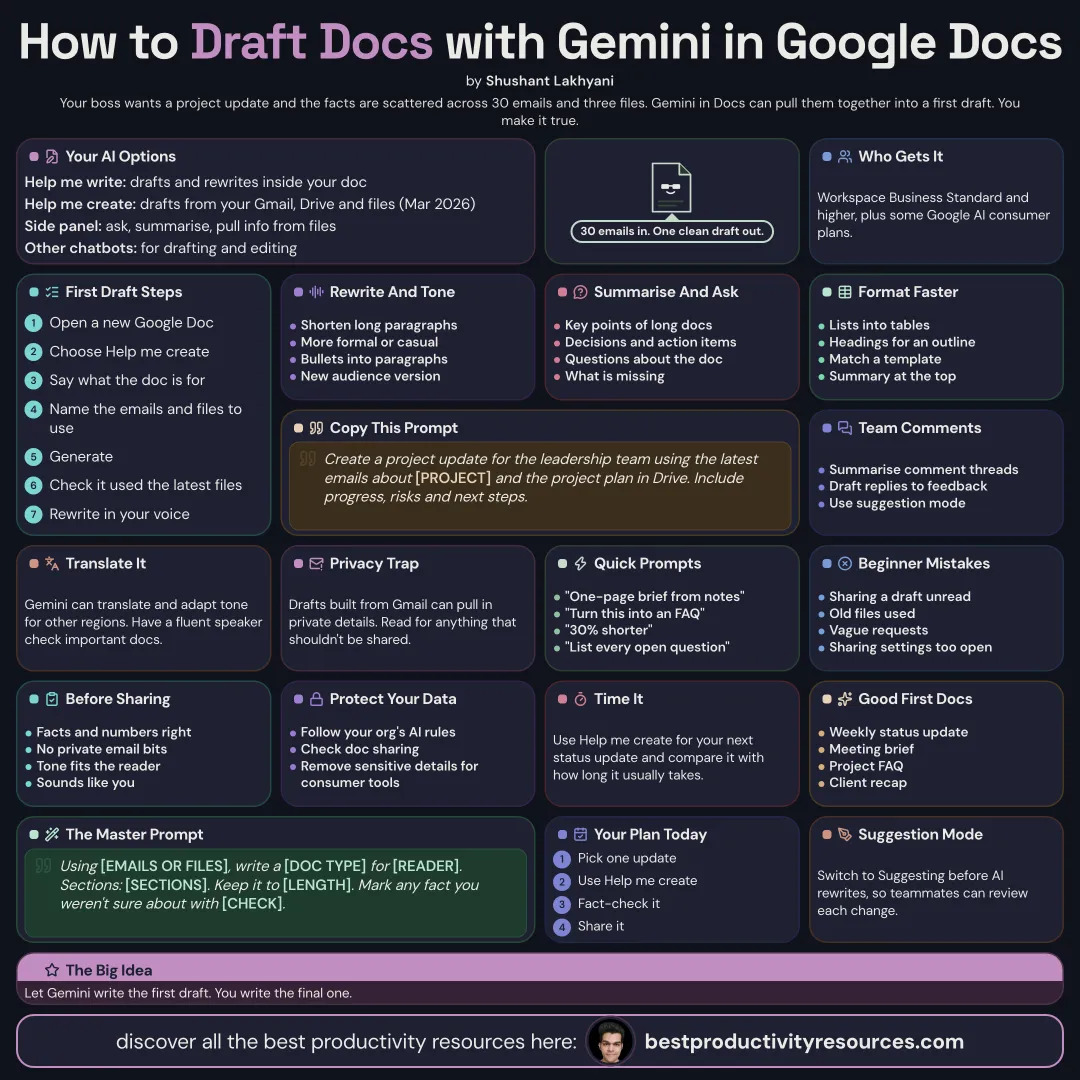
A free guide to using AI for Google Docs in 2026: Gemini in Docs, Help me create from your Gmail and Drive, Help me write, rewriting and tone, summaries, working with long documents, formatting, collaborating with comments, translation, plans and limits, checking, privacy, and prompts.
Drafts and rewrites text right inside your document
Help me create
Added in March 2026: drafts whole documents using context from your Gmail, Drive, and files
Gemini side panel
Answers questions, summarizes, and pulls in information from your files
Other assistants
ChatGPT, Claude, or Gemini chat, for drafting and editing
Gemini in Docs comes with Google Workspace Business Standard and higher, and with some Google AI consumer plans.
Let Gemini write the first draft. You write the last one.
02
Draft from your context
Create a project update for the leadership team from the latest emails about Project Atlas and the project plan in Drive. Cover progress, risks, and next steps.
Confirm it pulled the right files and the latest versions.
03
Rewrite and change tone
Trim long paragraphs
Shift text to a more formal or more casual tone
Expand bullet notes into paragraphs
Rework text for a different audience
04
Summarize and ask questions
Condense long documents into key points
Pull out decisions and action items
Ask questions about what the document says
Spot what is missing
05
Format faster
Convert lists into tables
Add headings for a clean outline
Match the style of a template
Add a summary at the top
06
Collaborate with comments
Summarize long comment threads
Draft responses to feedback
Make edits in suggestion mode so others can review them
07
Translate and adapt
Have Gemini or another assistant translate documents and adjust the tone for other regions. Get a fluent speaker to check anything important.
08
Check before you share
Facts and numbers are accurate
No private details from emails slipped in by mistake
The tone suits the reader
The voice sounds like yours
09
Protect your data
Follow your organization’s AI policies
Review the sharing settings on each document
Strip sensitive details before you use consumer AI tools
10
Try these prompts
“Turn these meeting notes into a one-page brief.”
“Convert this document into an FAQ.”
“Make this proposal 30% shorter.”
“List every unanswered question in this document.”
The golden rule
Do not share a Gemini draft you have not read. Use AI to get started, then make the document accurate and your own.
Help me write
Help me create
Rewrite
Summarize
Comments
Translate
Check
Try Help me create on your next status update and compare the time with how long it usually takes.
It has 10 sections, starting with “Know your AI options in Docs”, “Draft from your context”, “Rewrite and change tone” and “Summarize and ask questions”, plus 6 more sections.
How long does it take to read?
About 2 minutes. Every section is a short, self-contained card, so you can jump straight to the part you need.
Is this guide free?
Yes. The full guide is free to read on this page, with no sign-up.
For research and ideas only. Results vary and nothing here is a promise of income. See our Disclaimer.
See you Monday!
Weekly newsletter
Everything new, every Monday.
One short email every Monday with everything shipped that week: new free tools and websites, new guides, new free browser tools and what's new in my free Gumroad libraries, plus how the site is growing. Free, and you can unsubscribe anytime.
You sign up on Gumroad, which stores your email to send the newsletter. See our Privacy Policy.
Cookies and your choices
Visits are counted by Cloudflare Web Analytics, which sets no cookies and stores nothing on your device. An affiliate tracking script from Impact.com also loads on our pages and can set its own cookies so partner companies can credit us for sign-ups. Essential storage is always on so pages load and work correctly. You decide whether your browsing preferences are saved on your device. Read the Privacy Policy.