Create decks, write slides, and make images faster with Gemini in Slides and other AI tools
9 bite-sized sections
2 min read
Free, no signup
Short answer
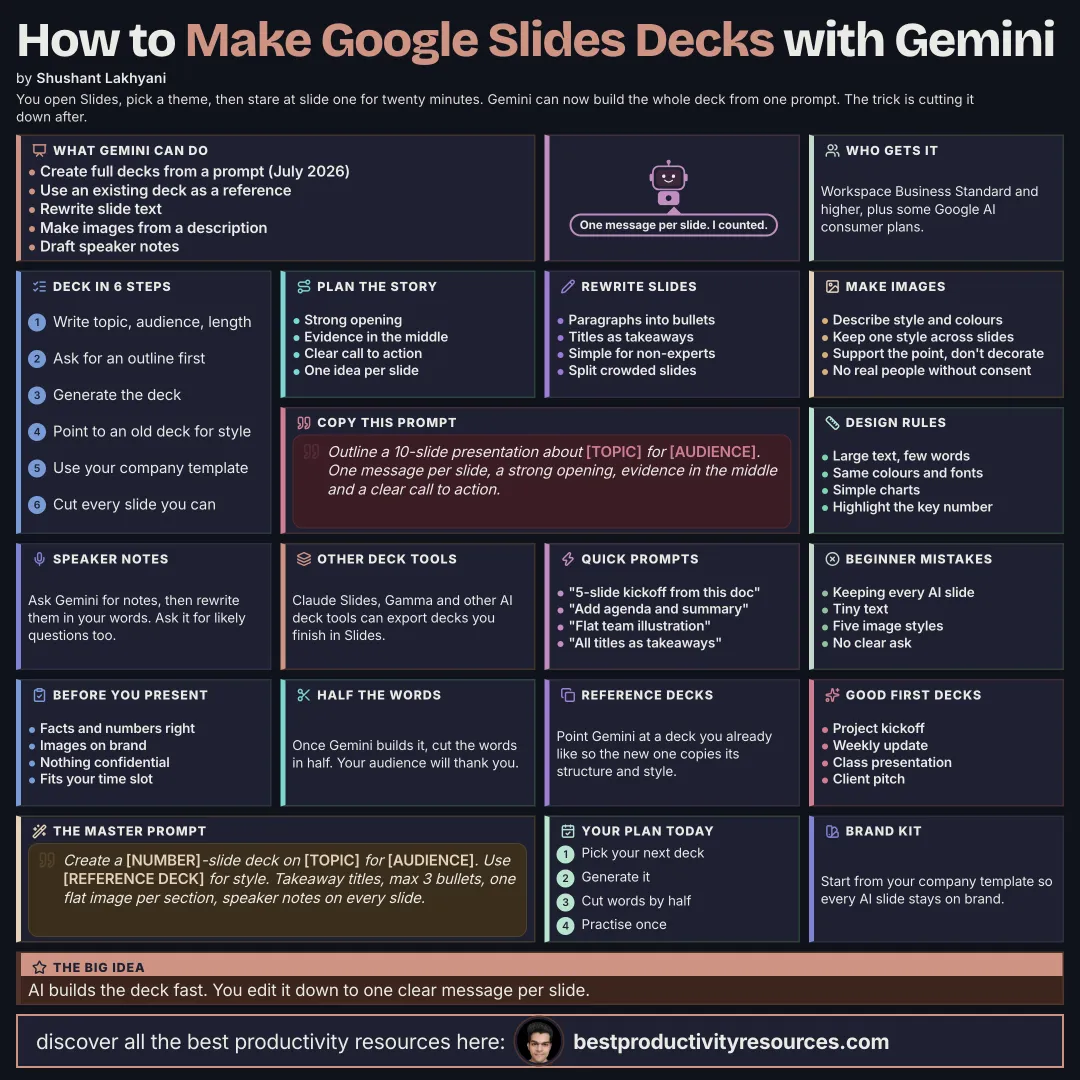
A free guide to using AI for Google Slides in 2026: Gemini in Slides, generating full decks from a prompt, using existing decks as references, rewriting slides, generating images, design tips, speaker notes, other tools such as Claude Slides, plans and limits, checking, and prompts.
Builds slides, rewrites text, and answers your questions
Full decks from a prompt
Added in June 2026: generates a complete presentation and can reference existing decks
Image generation
Makes images from a description for your slides
Other tools
Claude Slides, Gamma, and other AI deck tools that you can export from
Gemini in Slides comes with Google Workspace Business Standard and higher, and with some Google AI consumer plans.
A strong deck has one message per slide. AI gets you there faster.
02
Plan the story
Outline a 10-slide presentation on [topic] for [audience]. Give each slide one message, open strongly, put evidence in the middle, and end with a clear call to action.
03
Generate the deck
Describe the topic, the audience, and the length
Point to an existing deck for style and structure
Start from your company template
Review every slide and cut anything unneeded
04
Rewrite your slides
Turn long paragraphs into short bullets
Make every title a clear takeaway
Simplify the language for non-experts
Split up crowded slides
05
Create images
Describe the image, its style, and its colors
Keep one consistent style across slides
Avoid realistic images of real people without their consent
Choose images that support the message, not decoration
06
Design for clarity
Large text and few words
One idea per slide
Consistent colors and fonts
Simple charts that highlight the key number
07
Prepare speaker notes
Have Gemini draft your speaker notes
Rewrite them in your own voice
Ask for likely audience questions, with answers
08
Check before you present
Facts and numbers are accurate
Images are appropriate and match the brand
Confidential information is removed
The deck fits your time slot
09
Try these prompts
“Build a five-slide project kickoff deck from this document.”
“Add an agenda slide and a summary slide.”
“Generate a flat illustration of a team planning at a whiteboard.”
“Rewrite every title as a takeaway.”
The golden rule
Do not let AI fill a deck with words. Use it to build fast, then edit down to one clear message per slide.
Gemini
Story
Generate
Rewrite
Images
Notes
Check
Generate your next deck with Gemini, then cut its word count in half before you present.
What does “How to Use AI for Google Slides” cover?
It has 9 sections, starting with “Review your AI options in Slides”, “Plan the story”, “Generate the deck” and “Rewrite your slides”, plus 5 more sections.
How long does it take to read?
About 2 minutes. Every section is a short, self-contained card, so you can jump straight to the part you need.
Is this guide free?
Yes. The full guide is free to read on this page, with no sign-up.
For research and ideas only. Results vary and nothing here is a promise of income. See our Disclaimer.
See you Monday!
Weekly newsletter
Everything new, every Monday.
One short email every Monday with everything shipped that week: new free tools and websites, new guides, new free browser tools and what's new in my free Gumroad libraries, plus how the site is growing. Free, and you can unsubscribe anytime.
You sign up on Gumroad, which stores your email to send the newsletter. See our Privacy Policy.
Cookies and your choices
Visits are counted by Cloudflare Web Analytics, which sets no cookies and stores nothing on your device. An affiliate tracking script from Impact.com also loads on our pages and can set its own cookies so partner companies can credit us for sign-ups. Essential storage is always on so pages load and work correctly. You decide whether your browsing preferences are saved on your device. Read the Privacy Policy.