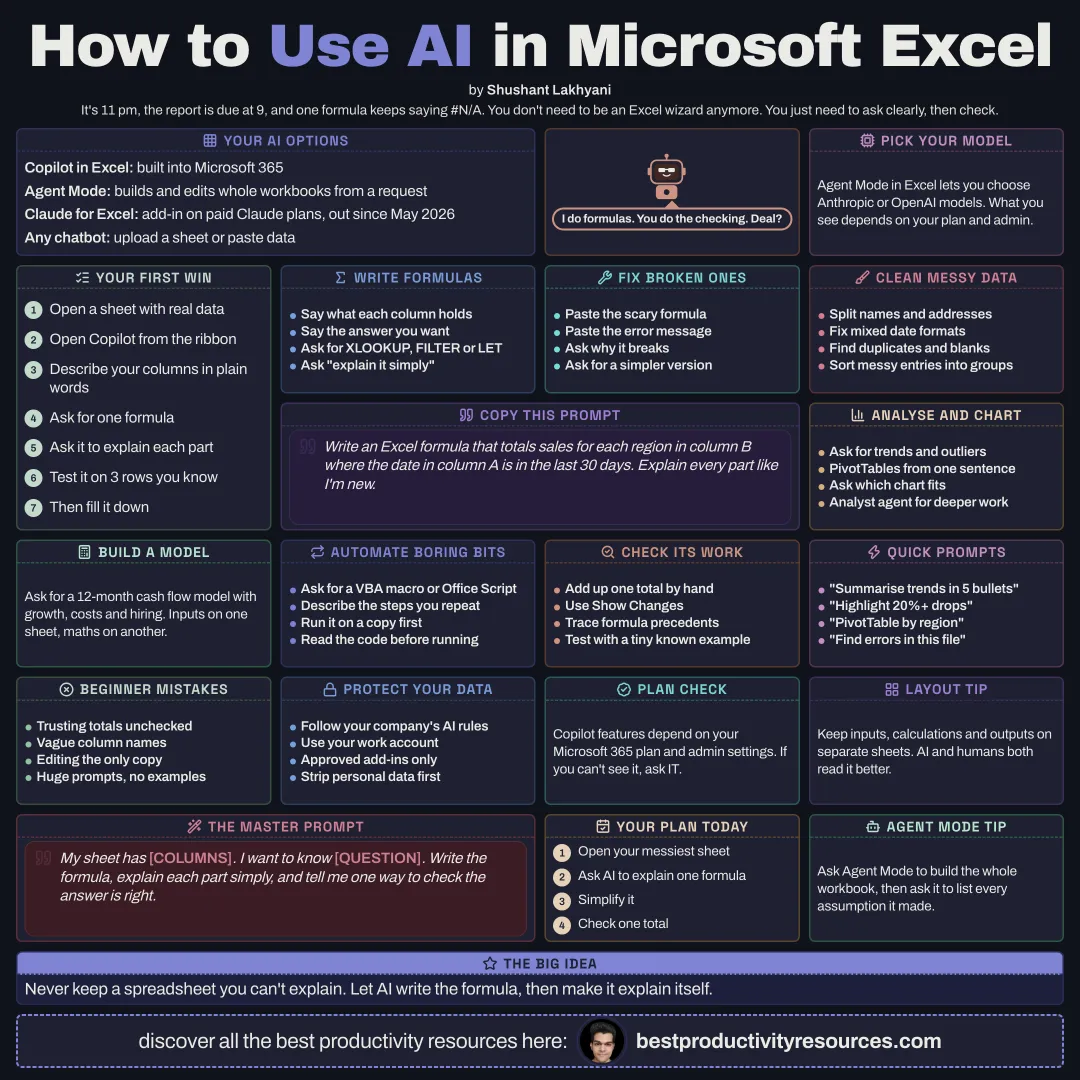
Use Copilot, Claude for Excel, and other AI tools to write formulas, clean data, analyse, and build models faster
10 bite-sized sections
2 min read
Free, no signup
Short answer
A free guide to using AI for Microsoft Excel in October 2026: Copilot in Excel and Agent Mode, Claude for Excel, ChatGPT and other assistants, writing and explaining formulas, cleaning data, analysis and charts, PivotTables, financial models, macros and scripts, checking AI work, privacy, and prompts.
Built into Microsoft 365. Agent Mode can build and edit entire workbooks from one request
Claude for Excel
An add-in for paid Claude plans, generally available since May 2026
ChatGPT, Gemini, or Claude chat
Upload a spreadsheet or paste in data to analyze it and get formulas
Agent Mode in Excel lets you pick between Anthropic and OpenAI models. Availability depends on your Microsoft 365 plan and your admin settings.
AI writes the formulas. You confirm they answer the right question.
02
Write formulas
Write an Excel formula that returns total sales for each region in column B where the date in column A falls within the last 30 days. Explain how it works.
Describe your columns and the result you want
Request modern functions like XLOOKUP, FILTER, and LET
Ask for an explanation of each part
03
Explain and fix formulas
Paste in a confusing formula and ask what it does
Paste in an error and ask what causes it
Request a simpler version
04
Clean your data
Split or merge names and addresses
Standardize dates and text
Find duplicates and blank cells
Sort messy entries into categories
05
Analyze and chart
Ask Copilot to surface trends, outliers, and summaries
Build PivotTables from a plain-language request
Ask which chart best answers your question
Use the Analyst agent for deeper data work, where available
06
Build models
Build a 12-month cash flow model with inputs for monthly revenue growth, costs, and hiring. Put the assumptions on their own sheet and label every input.
Put inputs, calculations, and outputs on separate sheets.
07
Automate repeat work with macros and scripts
Have AI write VBA macros or Office Scripts
Describe the steps you repeat
Test on a copy of the file
Read the code before you run it
08
Check the AI’s work
Spot-check the totals by hand
Use Show Changes to see Copilot’s edits
Trace formula precedents
Test against a small example you already know
Never trust a model you have not checked yourself
09
Protect your data
Follow your company’s AI policy
Use work accounts and approved add-ins for any company file
Strip out personal data before using consumer AI tools
10
Try these prompts
“Summarize the main trends in this table in five bullet points.”
“Highlight every row where sales fell more than 20% month over month.”
“Build a PivotTable of revenue by region and product.”
“Turn this data into a dashboard sheet with three charts on it.”
“Check this workbook for errors or inconsistencies.”
The golden rule
Do not let AI build a spreadsheet you cannot explain. Have it explain its formulas, then check the numbers yourself.
Copilot
Claude for Excel
Formulas
Clean
Analyze
Models
Check
Pick your most complicated spreadsheet and ask AI to explain, then simplify, its hardest formula.
What does “How to Use AI for Microsoft Excel” cover?
It has 10 sections, starting with “Know your AI options in Excel”, “Write formulas”, “Explain and fix formulas” and “Clean your data”, plus 6 more sections.
How long does it take to read?
About 2 minutes. Every section is a short, self-contained card, so you can jump straight to the part you need.
Is this guide free?
Yes. The full guide is free to read on this page, with no sign-up.
For research and ideas only. Results vary and nothing here is a promise of income. See our Disclaimer.
See you Monday!
Weekly newsletter
Everything new, every Monday.
One short email every Monday with everything shipped that week: new free tools and websites, new guides, new free browser tools and what's new in my free Gumroad libraries, plus how the site is growing. Free, and you can unsubscribe anytime.
You sign up on Gumroad, which stores your email to send the newsletter. See our Privacy Policy.
Cookies and your choices
Visits are counted by Cloudflare Web Analytics, which sets no cookies and stores nothing on your device. An affiliate tracking script from Impact.com also loads on our pages and can set its own cookies so partner companies can credit us for sign-ups. Essential storage is always on so pages load and work correctly. You decide whether your browsing preferences are saved on your device. Read the Privacy Policy.