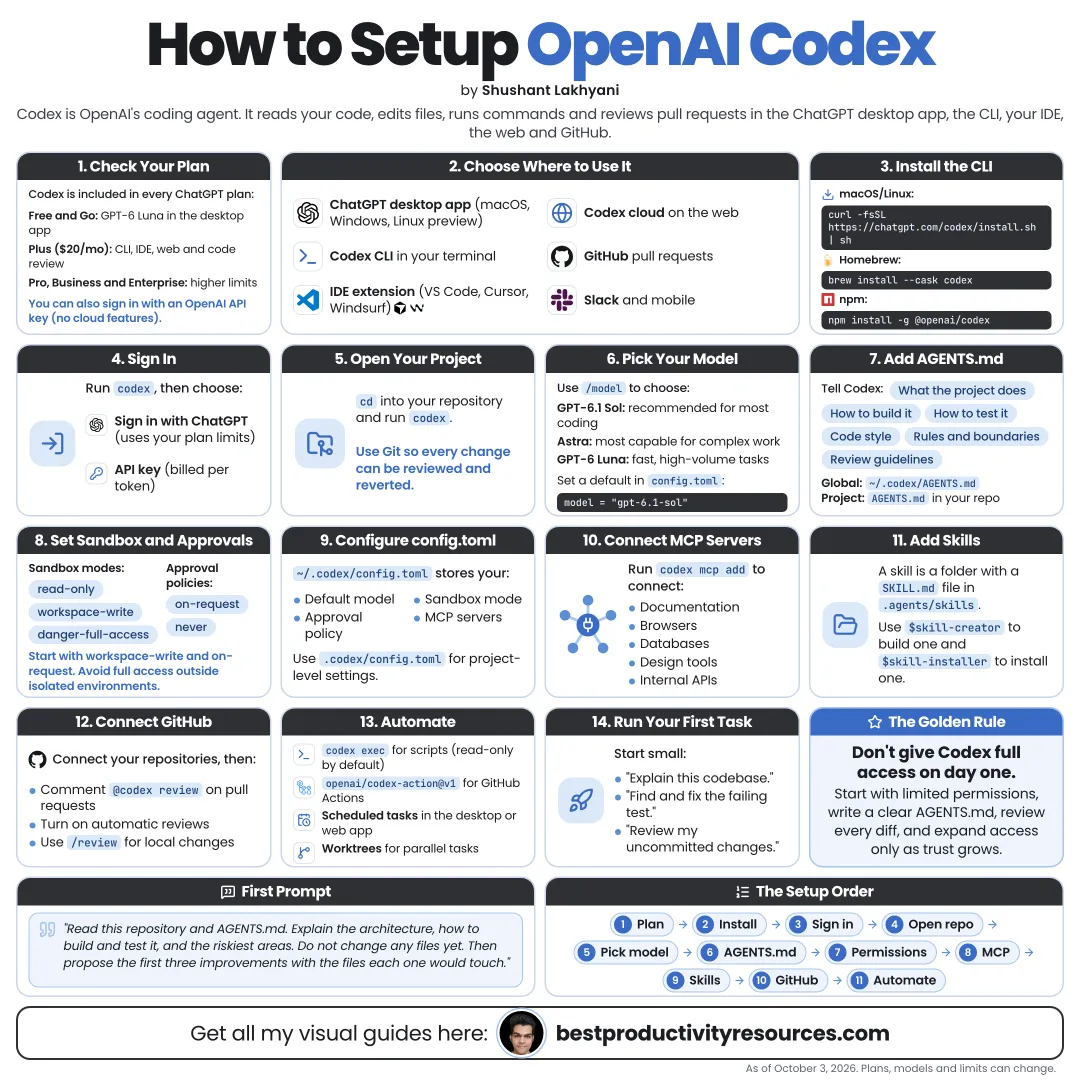
Turn Codex into a safe, well-configured coding agent in under an hour
22 bite-sized sections
8 min read
Free, no signup
Short answer
A free, up-to-date guide to setting up OpenAI Codex: plans, the ChatGPT desktop app, CLI install, sign-in, IDE extension, models, permissions, AGENTS.md, config.toml, skills, MCP, code review, Codex Cloud and safe first tasks.
On first launch, pick Sign in with ChatGPT to draw on your plan’s included usage.
You can sign in with an OpenAI API key instead, billed at API rates. Some features, such as cloud-based integrations, do not work with an API key.
Never paste an API key into a prompt, a committed file, or a shared document.
07
Add the IDE extension
Install the Codex extension in VS Code, Cursor, or Windsurf, then open the Codex sidebar to:
Reference open files and selected code
Review edits beside your code
Send longer tasks to the cloud
Keep follow-ups in one chat
No icon? Open the Command Palette and run Codex: Open Codex Sidebar.
08
Pick the right model
GPT-6.1 Sol
The recommended pick for complex coding and agentic work. Close to Astra performance at a lower cost.
GPT-6 Luna
Best for focused, repeatable tasks.
GPT-6 Astra
OpenAI’s most capable model, built for the hardest problems.
Switch models with /model in the CLI, or launch with:
codex --model gpt-6.1-sol
GPT-5.5 left Codex for ChatGPT sign-ins on October 14, 2026. Swap out gpt-5.5 wherever it appears in your settings, scripts, or scheduled tasks.
09
Set reasoning effort
Higher reasoning effort can lift results on complex tasks, but it runs slower and burns more of your limits.
Begin at the default effort
Raise it for planning, debugging, and architecture work
Lower it for quick edits and repetitive chores
In the CLI, /model also adjusts reasoning effort. Ultra mode goes further and splits large tasks across subagents.
10
Understand permissions
Two layers keep Codex safe:
Sandbox mode
What Codex can technically do, such as where it may write and whether it can reach the network.
Approval policy
When Codex has to stop and check with you before acting.
On your machine, Codex runs in an OS-enforced sandbox, and network access is off by default.
The Auto preset lets Codex read, edit, and run commands inside your working folder, and it asks first before stepping outside it or touching the network:
Run /permissions to drop to read-only when you just want to plan or ask questions.
11
Write an AGENTS.md file
Codex reads AGENTS.md files before it starts any work. Run /init to generate a starter file for your project.
Cover:
What the project does
How to install dependencies
How to run tests and linting
Code style rules
Folders to leave alone
Commands that need approval
What counts as done
Keep personal defaults in ~/.codex/AGENTS.md. Project files add to and override them, and the combined size caps at 32 KiB by default.
Short, specific rules beat long explanations.
12
Configure config.toml
Your local settings live in ~/.codex/config.toml. Use it to store:
Your default model
Sandbox and approval defaults
Network access settings
MCP servers
Trust levels per project
To allow network access in the default sandbox, turn it on explicitly:
[sandbox_workspace_write]
network_access = true
The old untrusted approval policy is retired. Delete it from older configs, or Codex may fail to start.
13
Add skills
A skill is a folder holding a SKILL.md file, plus optional scripts and references. SKILL.md must include a name and a description.
Project skills
.agents/skills inside your repository
Personal skills
~/.agents/skills inside your home folder
Type $ or run /skills to mention a skill. To build one with guidance, invoke $skill-creator.
14
Connect tools with MCP
MCP servers let Codex reach external tools and data, such as documentation, tickets, or databases.
codex mcp add
Run /mcp inside a session to see which servers are connected.
Connect only the servers a task requires, and check what each one can do.
15
Set up code review
Let Codex review your work before it ships:
Run /review on uncommitted changes or against a base branch
Mention @codex review on a GitHub pull request
Enable automatic reviews for connected repositories
Codex returns prioritized findings and leaves your working tree untouched, so you choose what to fix.
16
Set up Codex Cloud
Cloud tasks run remotely, so they keep working while you focus elsewhere.
In a new task, pick Work in, then Cloud, open Select environment, and choose Create environment. Codex inspects your repository and helps you prepare and test the setup.
In the terminal, codex cloud lets you browse chats, submit work, and apply results locally.
17
Learn the essential commands
codex
Open an interactive session
codex exec
Run a task without prompts in scripts or CI
codex resume
Pick up a recent chat
codex --search
Turn on live web search for current information
codex --image
Attach a screenshot or diagram
/init
Scaffold an AGENTS.md file
/review
Review changes
/status
Check context usage and rate limits
18
Start with a safe first task
Begin with something low-risk:
Walk me through this project. Explain its structure, how to run it, and how the tests work. Do not change any files.
Next, try a small change you can review:
Write tests for [one function]. Run the test suite and show me the diff before you finish.
Commit to Git before and after every task so you can always roll back.
19
Build good habits
Commit before each task
Set one clear goal per task
Request a plan for large changes
Review every diff
Run tests yourself before you merge
Keep AGENTS.md current
Open a new chat for each new topic
20
Keep it secure
Leave the sandbox on for everyday work
Enable network access only when a task needs it
Keep secrets out of AGENTS.md and prompts
Vet MCP servers and plugins before installing them
Check your plan’s data settings before touching client code
Treat website and file content as data, never as instructions
GPT-6 Astra also includes safety monitoring that can pause a task when it detects potentially unsafe behavior. Read the findings before you resume.
The sandbox and approvals protect you. Careful review protects your users.
21
Work through the setup checklist
Plan
Pick a plan that covers your surfaces.
Install
Desktop app, CLI, or IDE extension.
Sign in
ChatGPT account or API key.
Model
GPT-6.1 Sol for complex work, Luna for focused tasks.
Permissions
Workspace-write with approvals on request.
Instructions
An AGENTS.md file with project rules.
Extend
Skills and MCP only where they help.
Review
Review code before anything ships.
22
Use the master setup prompt
Paste this into a new repository once Codex is installed:
Act as my Codex setup assistant for this repository.
Inspect the project without changing anything. Then propose an AGENTS.md that covers what the project does, how to install dependencies, how to run tests and linting, code style rules, folders to avoid, and which actions must ask for approval.
Recommend sandbox and approval settings for daily work, list any MCP servers or skills that would truly help, and explain why.
Wait for my approval before you create or change any files.
The best principle
Do not ask: “How do I make Codex do everything?” Ask: “What may Codex do on its own, and what must it check with me first?”
Plan
Install
Sign in
Model
Permissions
AGENTS.md
Extend
Review
Set it up once with clear rules, then hand it small, reviewable tasks and widen its scope from there.
It has 22 sections, starting with “Learn what OpenAI Codex is”, “Pick where Codex runs”, “Choose a plan” and “Set up the ChatGPT desktop app”, plus 18 more sections.
How long does it take to read?
About 8 minutes. Every section is a short, self-contained card, so you can jump straight to the part you need.
Is this guide free?
Yes. The full guide is free to read on this page, with no sign-up.
For research and ideas only. Results vary and nothing here is a promise of income. See our Disclaimer.
See you Monday!
Weekly newsletter
Everything new, every Monday.
One short email every Monday with everything shipped that week: new free tools and websites, new guides, new free browser tools and what's new in my free Gumroad libraries, plus how the site is growing. Free, and you can unsubscribe anytime.
You sign up on Gumroad, which stores your email to send the newsletter. See our Privacy Policy.
Cookies and your choices
Visits are counted by Cloudflare Web Analytics, which sets no cookies and stores nothing on your device. An affiliate tracking script from Impact.com also loads on our pages and can set its own cookies so partner companies can credit us for sign-ups. Essential storage is always on so pages load and work correctly. You decide whether your browsing preferences are saved on your device. Read the Privacy Policy.