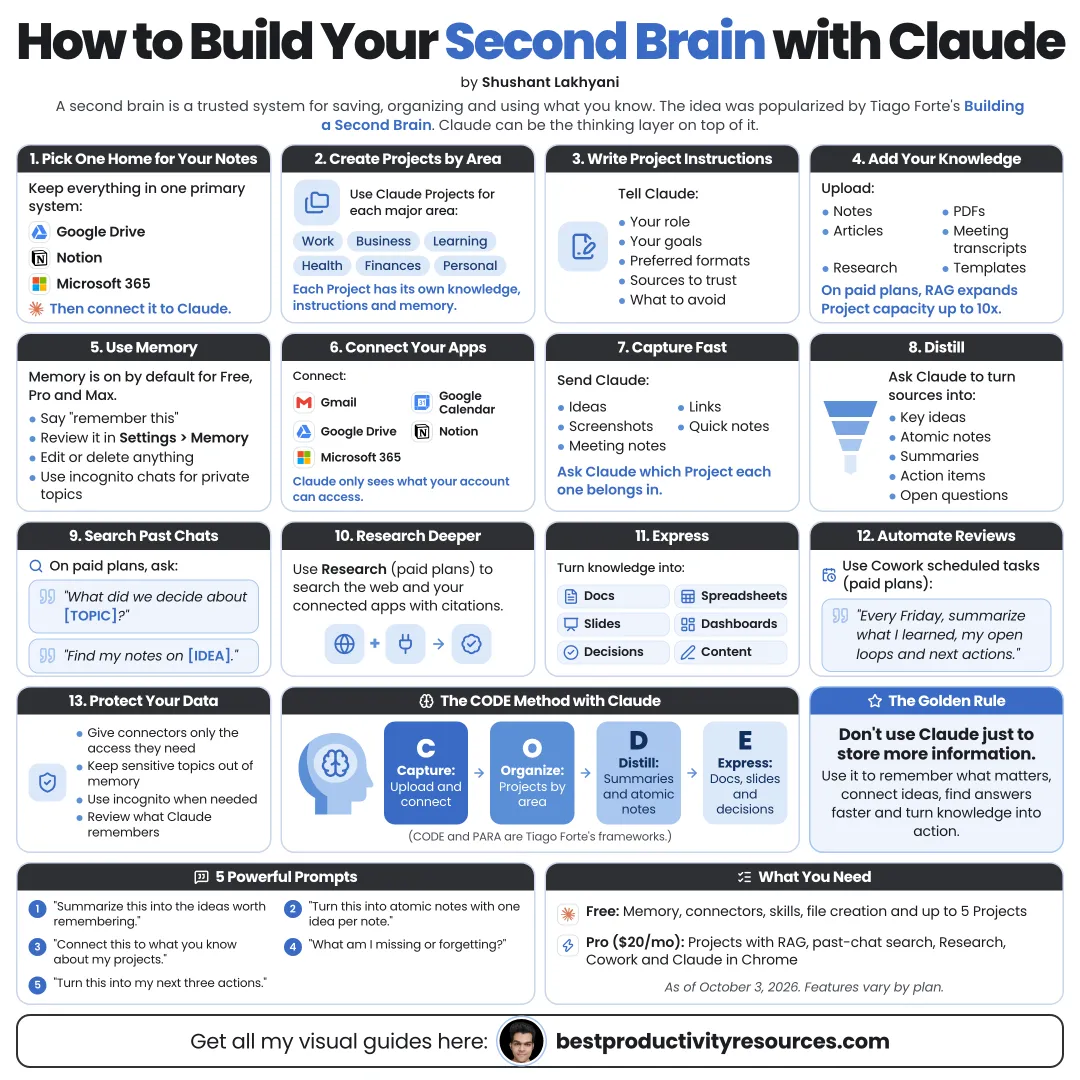
Turn Claude into a thinking partner that remembers your context, finds your knowledge, and helps you use it
22 bite-sized sections
7 min read
Free, no signup
Short answer
A free guide to building a second brain with Claude: Projects, memory, connectors, Claude Docs, Claude Code with a Markdown vault, capture, organization, retrieval, reviews, privacy and ready-to-use prompts.
Markdown files in a folder you own last, travel well, and are easy for Claude Code to read.
Keep one home for your knowledge. Claude connects to it. It does not replace it.
04
Turn on memory and shape it
Since March 2026, Claude’s memory has been available on every plan, Free included.
Memory lets Claude carry useful context from chat to chat, such as:
Your role and work
Ongoing projects
Writing and format preferences
Recurring goals
The tools you use
Check what Claude remembers in settings, fix anything wrong, and delete anything you do not want kept. You can also import memory exported from other AI assistants.
05
Give each major area its own Project
Projects are focused workspaces, each with its own files and instructions.
Set up Projects for areas like:
Your business
A course you are studying
A book you are drafting
Health and fitness research
A long-term client
A topic you want to master
Free users can create up to five Projects. On paid plans, Projects use retrieval to expand capacity by up to 10x as your files grow.
06
Write clear Project instructions
Every Project can carry its own instructions. Cover:
What the Project is for
Your role in this context
Which files matter most
How to format answers
When to cite the files
What to do when information is missing or unclear
For example:
Answer from this Project's files first and name the file you used. If my files do not cover something, say so plainly before you add general knowledge.
07
Connect the apps you use
Connectors let Claude search and use information in your tools. Common ones include:
Connect only what you need, and check what each connector can read and change.
08
Capture now, process later
Make capture effortless:
Save articles and highlights in your knowledge home
Drop rough ideas into one inbox note
Upload PDFs and slides to the matching Project
Record voice notes and keep the transcripts
Forward useful emails to one folder
Save meeting notes as soon as meetings end
Capture first. Process later, with Claude's help.
09
Have Claude process your inbox
Once a week, hand Claude your inbox notes and ask it to:
Summarize each item
Suggest titles
Pull out key ideas and action items
Suggest a home for each note
Flag duplicates
List questions worth exploring
Treat Claude’s suggestions as drafts. You decide what stays.
10
Break material into atomic notes
Ask Claude to split long material into small notes, one idea each.
Prompt:
Turn this material into atomic notes. Give each note one idea, a clear title that states that idea, a short explanation in my own plain language, and the original source at the bottom.
Small notes are easier to find, link, and use again.
11
Point Claude Code at your notes folder
If your notes are Markdown files, Claude Code can work on them directly. It can:
Search every note at once
Link related notes together
Clean up inconsistent tags and titles
Build index notes for each topic
Find orphan notes that have no links
Write weekly summaries
Add a CLAUDE.md file to your notes folder that spells out your structure and rules. Back up the folder before any large change.
12
Draft in Claude Docs
Claude Docs, launched in beta in September 2026, lets you build living documents with Claude that you can edit, comment on, share, and export to Word or Google Docs.
Use it to turn notes into:
Briefs and memos
Research summaries
Plans and proposals
Study guides
It is rolling out to Pro and Max first, and other plans will follow.
13
Ask, do not search
Skip the hunt for the right note. Ask:
“What have I saved on pricing?”
“What did I decide on this project last month?”
“Which sources back up this idea?”
“What in my notes contradicts this?”
“Summarize everything I know on this topic.”
Ask Claude to name the files it used, so you can check each source.
14
Surface hidden connections
Prompt:
Compare this new note with my existing notes on the same topic. Find five meaningful connections, any contradictions, and one question I have not yet explored.
Connections turn a pile of notes into real understanding.
15
Turn knowledge into output
A second brain should produce work. Ask Claude to draw on your notes to create:
Articles and posts
Presentations
Decision memos
Project plans
Checklists
Course outlines
Using only my selected notes, outline a piece about [topic] and show which note supports each section.
16
Review every week
Each week, ask Claude:
“What did I capture in the last week?”
“Which themes keep coming up?”
“Which ideas earn a permanent note?”
“What can I archive?”
“What should I act on in the coming week?”
Claude Code can also run a scheduled summary of your notes folder, so the review is waiting when you are ready.
17
Review every month
Biggest lessons learned
Decisions made
Projects started and finished
Opinions that shifted
Knowledge gaps
Next learning priorities
Ask Claude to compare this month with last month. Patterns show up over time.
18
Keep sources attached
Store the original link or file with every note
Keep quotes apart from summaries
Date anything time-sensitive
Ask Claude to cite the files it used
Check key claims against the source
A summary points to the source. It does not replace it.
19
Guard your private knowledge
Before you connect sensitive information, know:
What Claude can reach through each connector
What memory stores, and how to edit it
The data and privacy settings on your plan
How to delete your chats, memory, and files
Which notes must never leave your computer
Keep highly sensitive information out of connected tools, or store it in a local folder you control.
20
Keep it lean and useful
Do not save everything. Keep only what is:
Useful
Hard to find again
Tied to your goals
Likely to matter later
Your own thinking
A small second brain you trust beats a big one you forget.
21
Run the Claude second brain loop
Capture
Save useful information fast.
Store
Keep it all in one knowledge home.
Process
Let Claude summarize and organize it.
Connect
Link ideas that belong together.
Ask
Retrieve it with plain questions.
Create
Turn knowledge into work.
Review
Refine it weekly and monthly.
22
Save these ten second brain prompts
Prompt 1
“Summarize this into the ideas most worth keeping.”
Prompt 2
“Split this into atomic notes, one idea each.”
Prompt 3
“Which of my existing notes does this link to?”
Prompt 4
“What do my files say about [topic]? Name every file.”
Prompt 5
“What in my notes contradicts this?”
Prompt 6
“Which questions about [topic] can my notes not answer?”
Prompt 7
“Turn these notes into a plan of action.”
Prompt 8
“What did I learn this week, and what deserves a permanent note?”
Prompt 9
“Quiz me on these notes, focusing on my weak spots.”
Prompt 10
“Using only these notes, outline a post on [topic].”
Follow the golden rule
Do not use Claude to hoard more information. Use it to understand, connect, and act on what you already have.
Capture
Store
Process
Connect
Ask
Create
Review
The goal is not the biggest second brain. It is one you actually use.
What does “How to Build Your Second Brain with Claude” cover?
It has 22 sections, starting with “Understand the second brain”, “Learn the Claude second brain stack”, “Pick one knowledge home” and “Turn on memory and shape it”, plus 18 more sections.
How long does it take to read?
About 7 minutes. Every section is a short, self-contained card, so you can jump straight to the part you need.
Is this guide free?
Yes. The full guide is free to read on this page, with no sign-up.
For research and ideas only. Results vary and nothing here is a promise of income. See our Disclaimer.
See you Monday!
Weekly newsletter
Everything new, every Monday.
One short email every Monday with everything shipped that week: new free tools and websites, new guides, new free browser tools and what's new in my free Gumroad libraries, plus how the site is growing. Free, and you can unsubscribe anytime.
You sign up on Gumroad, which stores your email to send the newsletter. See our Privacy Policy.
Cookies and your choices
Visits are counted by Cloudflare Web Analytics, which sets no cookies and stores nothing on your device. An affiliate tracking script from Impact.com also loads on our pages and can set its own cookies so partner companies can credit us for sign-ups. Essential storage is always on so pages load and work correctly. You decide whether your browsing preferences are saved on your device. Read the Privacy Policy.