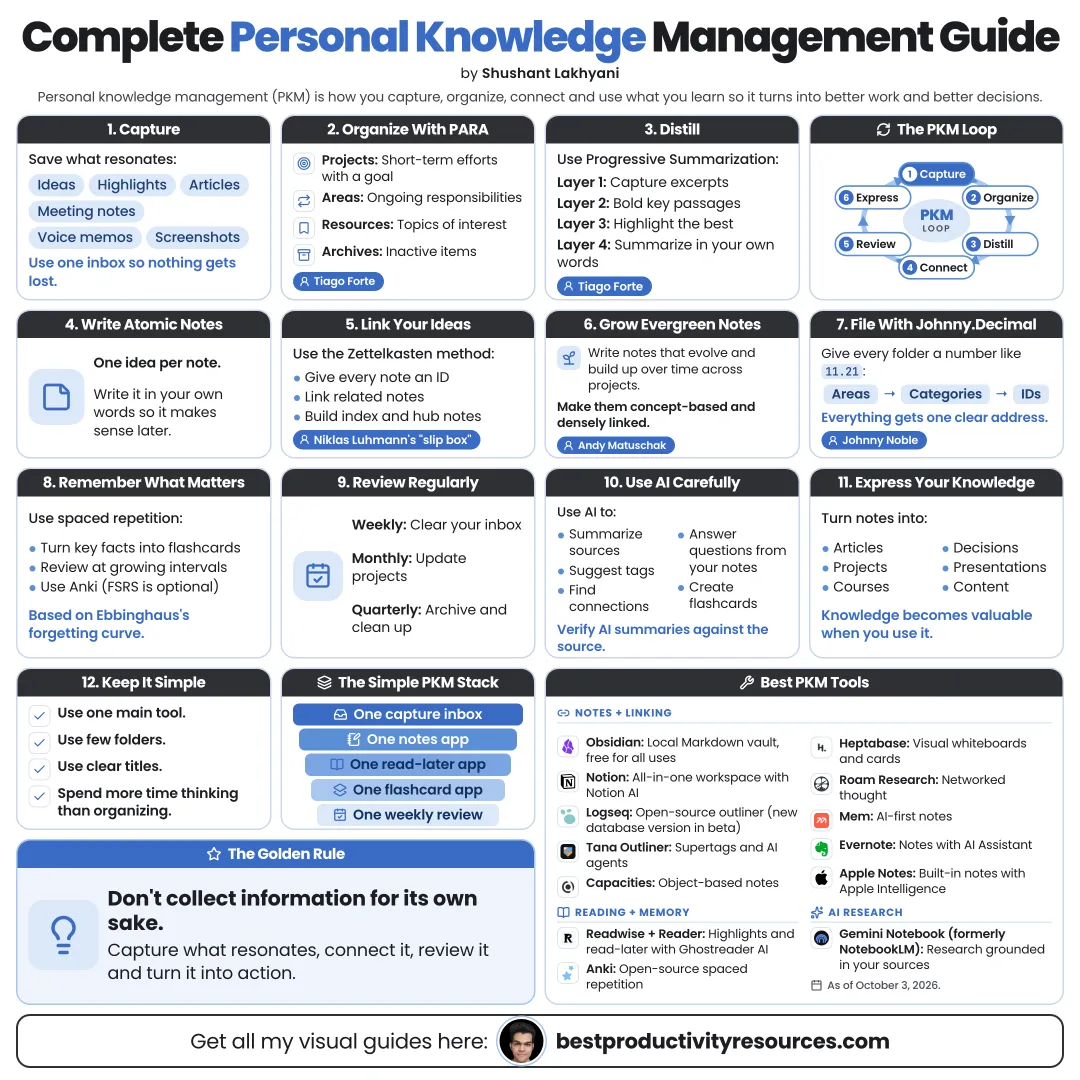
Turn what you read, learn, and think into a system you can trust and use for life
23 bite-sized sections
7 min read
Free, no signup
Short answer
A complete, free guide to personal knowledge management (PKM): the core loop, CODE, PARA, Zettelkasten, evergreen notes, maps of content, Johnny.Decimal, GTD, progressive summarization, spaced repetition, tools, reviews, AI and common mistakes.
Personal knowledge management, or PKM, is the way you capture, organize, connect, retrieve, and apply what you learn.
A solid PKM system helps you:
Remember what matters
Find information quickly
Connect ideas across topics
Think more clearly
Create work faster
Make better decisions
Keep learning for years
PKM is not about storing more. It is about putting more of what you already know to work.
02
Learn the PKM loop
Capture
Save what resonates with you.
Organize
Put it where you can find it.
Distill
Keep only the essence.
Connect
Tie it to what you already know.
Retrieve
Pull it up when you need it.
Express
Use it to make something.
Review
Keep the system clean and up to date.
03
Start with your purpose
Before you pick tools, decide what your system is for:
Learning a subject deeply
Writing or creating content
Research
Running projects
Studying for exams
Growing a business
Personal reflection
Your purpose decides what you keep. Without one, you save everything and use nothing.
04
Capture ideas with the CODE method
Tiago Forte’s Building a Second Brain lays out four steps: Capture, Organize, Distill, Express.
Capture only what resonates or proves useful
Keep a single inbox for quick captures
Save the source with each capture
Add one line on why it matters to you
Skip organizing while you capture
Capture first. Organize later.
05
Organize with PARA
PARA, also from Tiago Forte, sorts information by how actionable it is right now:
Projects
Short-term efforts with a clear goal and a deadline.
Areas
Ongoing responsibilities you maintain, like health or finances.
Resources
Topics of interest you might use later.
Archives
Inactive items from the three categories above.
PARA works across tools: notes, files, email, and bookmarks can all share the same four folders.
06
Think with a Zettelkasten
The Zettelkasten, or slip box, is famous through sociologist Niklas Luhmann, who built a large linked card system over decades. Sönke Ahrens’ book How to Take Smart Notes brought it to a wide audience.
Fleeting notes
Quick thoughts you process soon.
Brief notes on a source, in your own words.
Brief notes on one source, in your own words.
Permanent notes
One idea per note, written to stand alone and linked to related ideas.
The value lives in the links between notes, not in the note count.
07
Write evergreen notes
Andy Matuschak describes evergreen notes as notes written to evolve and gain value over time.
One concept per note
A title that states the idea itself
Phrased in your own words
Densely linked to related notes
Updated as your thinking shifts
Example title: “Spaced repetition beats rereading for long-term memory,” rather than “Memory notes.”
08
Navigate topics with maps of content
Maps of content, or MOCs, made popular by Nick Milo’s Linking Your Thinking, are index notes that gather related notes on one topic.
Create a MOC once a topic has many notes
Sort links under short headings
Add one sentence that explains each group
Link MOCs to one another
MOCs add structure without forcing every note into a single folder.
09
Give every file a fixed address with Johnny.Decimal
Johnny.Decimal, created by Johnny Noble, sorts files into at most 10 areas, each holding at most 10 categories, and gives every item a number such as 12.03.
Areas take ranges such as 10–19
Categories take two digits such as 12
Items take IDs such as 12.03
Every item lives in exactly one place
It suits files and documents that need a stable, easy-to-find location.
10
Link knowledge to action with GTD
David Allen’s Getting Things Done is about moving tasks out of your head and into a trusted system.
Capture
Collect everything that holds your attention.
Clarify
Decide what each item means and its next action.
Organize
Put each item where it belongs.
Reflect
Review the whole system regularly.
Engage
Do the work with full confidence.
PKM holds what you know. GTD manages what you must do. Use them together.
11
Distill with progressive summarization
Progressive summarization adds a layer of highlighting each time you return to a note:
Layer 1: the passage you saved
Layer 2: bold the key parts
Layer 3: highlight the best of the bolded text
Layer 4: a short summary in your own words
Distill a note only when you use it. Let effort follow need.
12
Use links, tags, and properties with intent
Links
Connect specific ideas. Your strongest tool for thinking.
Tags
Mark broad types or statuses, like #book or #draft. Keep the list short.
Properties
Structured fields like author, date, status, or source.
Folders
A few broad containers. Skip deep nesting.
Too many tags create a second mess. Stick to a small, consistent set.
13
Take notes on what you read
Highlight while reading
Export highlights into your system
Write a few notes in your own voice
Link them to ideas you already have
Record the book or article as your source
Note what you plan to do differently
Read-it-later and highlight tools such as Readwise make this easier by syncing highlights into your notes app.
14
Remember with spaced repetition
Notes help you find knowledge. Spaced repetition helps you keep it.
Turn key facts into flashcards you can review
Space reviews at growing intervals
Put one fact on each card
Use your own wording
Review a little each day
Anki is a popular free flashcard app, and it has supported the FSRS scheduling algorithm natively since version 23.10.
15
Choose tools that fit you
Obsidian
Local Markdown files, links, graph view, and Bases. Free, even for work.
Logseq
Open-source outliner built around daily notes and blocks.
Notion
Docs and databases. Strong for structured projects and for teams.
Tana
Outliner with structured supertags.
Capacities
Notes organized as objects like people, books, and ideas.
Heptabase
Visual whiteboards built for research and learning.
Anytype
Local-first and encrypted.
Apple Notes or Google Keep
Simple, fast capture.
Zotero
Free reference manager built for academic sources.
The best tool is the one you open every day. Switching tools rarely fixes anything.
16
Own your data
Prefer exportable formats, such as Markdown
Keep backups on a regular schedule
Test the export before you commit to a tool
Never lock years of notes into one company
Keep sensitive notes on your device or encrypted
Your knowledge should outlast any app.
17
Use AI as a helper, not a replacement
AI can help you:
Summarize sources
Suggest titles and links
Search by meaning
Find contradictions
Turn notes into drafts
Quiz you on what you have learned
But understanding forms when you write notes in your own words. Let AI process and retrieve. Keep the thinking yours.
Never let an AI summary stand in for the original source.
18
Build a daily practice
Capture ideas as they arrive
Keep one daily note for thoughts and tasks
Work through a few inbox items
Link one new note to an older one
Review a few flashcards
Ten minutes a day beats a three-hour overhaul once a year.
19
Hold weekly and monthly reviews
Weekly
Empty your inbox
Review active projects
Turn strong captures into permanent notes
Archive finished work
Plan the next week
Monthly
Review your areas of responsibility
Update maps of content
Delete whatever no longer matters
Note what you learned
Pick your next learning priorities
20
Turn knowledge into output
Knowledge gains value when you use it. Turn notes into:
Articles and posts
Talks and presentations
Decisions
Projects
Teaching
Products
Every output also improves your notes, because making things exposes gaps.
21
Avoid common mistakes
Collecting without ever using anything
Switching tools endlessly
Building complex systems before you have notes
Copying text instead of writing in your own words
Creating hundreds of tags
Nesting folders too deeply
Never reviewing anything
Saving without sources
A simple system you use beats a perfect one you only admire.
22
Start simple, then expand
Week 1
Choose one tool and set up an inbox.
Week 2
Create your PARA folders.
Week 3
Write five permanent notes in your own voice.
Week 4
Add links and build your first map of content.
Month 2
Start a weekly review.
Month 3
Add spaced repetition or AI help if you need it.
23
Match the method to your goal
You want to finish your projects
PARA and GTD
You want deeper thinking
Zettelkasten and evergreen notes
You have many files
Johnny.Decimal
You want to remember key facts
Spaced repetition
You have many notes on a single topic
Maps of content
You save a lot of what you read
Progressive summarization
Methods are tools, not religions. Keep what helps and drop what does not.
Follow the golden rule
Do not build a library you never visit. Build a workshop you work in every day.
Capture
Organize
Distill
Connect
Retrieve
Express
Review
The goal of personal knowledge management is not to remember everything. It is to make what you know easy to find, link, and put to use.
What does “Complete Personal Knowledge Management Guide” cover?
It has 23 sections, starting with “Define personal knowledge management”, “Learn the PKM loop”, “Start with your purpose” and “Capture ideas with the CODE method”, plus 19 more sections.
How long does it take to read?
About 7 minutes. Every section is a short, self-contained card, so you can jump straight to the part you need.
Is this guide free?
Yes. The full guide is free to read on this page, with no sign-up.
For research and ideas only. Results vary and nothing here is a promise of income. See our Disclaimer.
See you Monday!
Weekly newsletter
Everything new, every Monday.
One short email every Monday with everything shipped that week: new free tools and websites, new guides, new free browser tools and what's new in my free Gumroad libraries, plus how the site is growing. Free, and you can unsubscribe anytime.
You sign up on Gumroad, which stores your email to send the newsletter. See our Privacy Policy.
Cookies and your choices
Visits are counted by Cloudflare Web Analytics, which sets no cookies and stores nothing on your device. An affiliate tracking script from Impact.com also loads on our pages and can set its own cookies so partner companies can credit us for sign-ups. Essential storage is always on so pages load and work correctly. You decide whether your browsing preferences are saved on your device. Read the Privacy Policy.