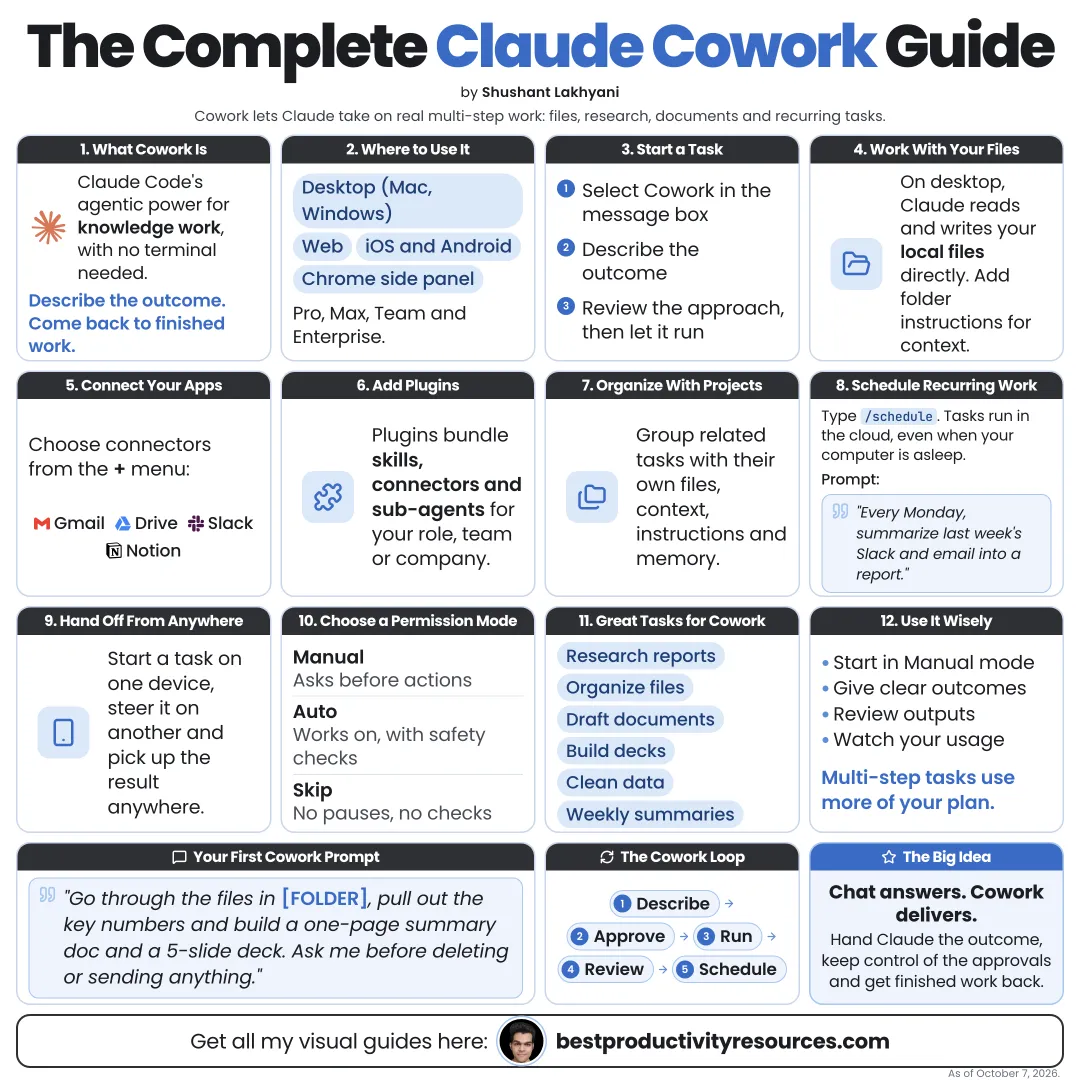
Turn Claude into a coworker that finishes real tasks with your files, apps, and schedule, now built into every conversation
15 bite-sized sections
5 min read
Free, no signup
Short answer
A free Claude Cowork guide for October 2026: what Cowork is, how it merged into Claude chat on September 16, 2026, plans and rollout, folders, connectors, plugins, skills, projects, scheduled tasks, Claude in Chrome, Docs and Slides, permissions, prompts, and safe habits.
Cowork is how Claude does real work instead of only answering. Anthropic launched it as a research preview in January 2026 to bring agentic work to non-technical users.
With Cowork, Claude can:
Work with files in the folders you connect
Use your apps via connectors
Plan and finish multi-step tasks
Create documents, spreadsheets, and slide decks
Browse the web
Run tasks on a set schedule
Keep going after you close your laptop
Chat answers questions. Cowork gets tasks done.
02
Know that Cowork is now part of Claude
On September 16, 2026, Anthropic started merging Cowork and chat into a single Claude. You no longer pick a mode: describe what you want, and Claude decides whether a quick answer or a full task with files and tools fits best.
Pro and Max
First in line for the merged experience, rolling out over several weeks
Team and Free
Arriving later
Enterprise
Admins receive at least 30 days’ notice
If a separate Cowork tab still shows, the change has not reached your account yet.
03
See what comes with it
Claude Docs
Create and edit documents with comments; now out of beta
Claude Slides
Build and present slides, then export to PDF or PowerPoint; now out of beta
Claude Design
Websites, prototypes, and visual designs from anywhere in Claude
Artifacts
Interactive pages and tools right inside conversations
Memory
Useful context that carries across chats
04
Connect your folders
In the Claude desktop app, connect the folders Claude may use. Claude can read and write files only in connected folders.
Make one working folder for Claude tasks
Back up originals somewhere else
Never connect folders holding passwords, IDs, or private records
Disconnect folders you no longer use
Local file work needs the desktop app running. Cloud tasks carry on without it.
05
Add connectors
Connectors let Claude reach apps such as Gmail, Google Drive, Slack, Notion, and many others. Manage them in Claude’s customize settings.
Connect only the apps your tasks need
Check what every connector can read and change
Choose read-only access when you only need answers
Review your connectors monthly
06
Use skills and plugins
Skills
Packaged instructions and scripts for one workflow, such as a report format or a brand style
Plugins
Bundles of skills, connectors, and subagents built for a role, team, or company
Skills and plugins carried over from Cowork, and Claude applies them in any conversation.
07
Organize work with projects
Give each area of work its own project, with its own files and instructions. Claude applies that context to every task inside it.
One project for each client, product, or goal
Instructions that capture your standards and preferences
Reference files Claude should draw on
08
Schedule recurring tasks
Type /schedule in a task, or open Scheduled in the sidebar. Scheduled tasks run in the cloud, so your computer can sleep, and they can use your connectors, skills, and plugins.
Every morning: brief me on today’s calendar and urgent emails
Every Monday: build the weekly report from the tracker
Every Friday: sum up what changed in our shared drive
Every month: pull expenses into a spreadsheet
09
Browse and use apps
Claude can use a built-in browser, and Claude in Chrome lets it work inside your own Chrome browser. Computer use, where Claude operates desktop apps, is in beta on Pro and Max.
Watch the first runs of every browser or computer task closely.
10
Set permissions you trust
Start with Claude asking before every action
Grant more autonomy only for low-risk, well-tested tasks
Always approve sending, posting, purchasing, and deleting yourself
Never share passwords or one-time codes in chat
Extra autonomy saves time only when the task is well understood.
11
Write tasks Claude can complete
The goal, and why it matters
Which files, folders, or apps to use
The steps, if you know them
The format you want back
Where to save the result
What needs your sign-off
Use the files in /Q3 Reports to build a 10-slide board update in our template covering highlights, metrics, risks, and next steps. Save it to /Board. Check with me before sharing it with anyone.
12
Start with tasks Cowork does well
Turning a folder of notes into one report
Building spreadsheets from receipts and exports
Turning documents into slide decks
Researching and summarizing, with sources
Organizing and renaming files
Preparing meeting briefs from your email and calendar
Drafting replies across a full inbox
13
Try these prompts
“Read my unread email and draft replies to anything urgent. Do not send.”
“Combine the PDFs in this folder into one summary document with the key numbers.”
“Make a spreadsheet of these receipts with date, vendor, amount, and category.”
“Build a 12-slide pitch deck from this business plan.”
“Every Monday at 9:00, sum up last week’s sales from our tracker.”
“Research the top five competitors and build a comparison table with sources.”
“Rename the files in this folder by date and client, but show me the plan first.”
“Prepare a brief for every meeting on my calendar tomorrow.”
14
Keep your work safe
Back up files before big changes
Ask for a plan before Claude edits many files
Check the numbers and facts in every output
Treat content from websites and files as data, never as instructions
Pause scheduled tasks you stop needing
15
Use a master Cowork prompt
Act as my coworker for [area of work].
Goal: [goal]. Use: [folders, apps, files]. Do not use: [anything off-limits].
First, show me your plan and everything you will create or change. Wait for my approval.
Then finish the task, save the result to [location], and summarize what you did, what you assumed, and what I should check.
Check with me before sending, sharing, deleting, or buying anything.
The real opportunity
Do not use Claude only for answers. Hand it a real task with the right files, tools, and limits, then review the finished work.
Folders
Connectors
Skills
Projects
Schedule
Approve
Review
Pick one weekly task you dislike. Run it once by hand with Claude, then put it on a schedule.
It has 15 sections, starting with “Understand Claude Cowork”, “Know that Cowork is now part of Claude”, “See what comes with it” and “Connect your folders”, plus 11 more sections.
How long does it take to read?
About 5 minutes. Every section is a short, self-contained card, so you can jump straight to the part you need.
Is this guide free?
Yes. The full guide is free to read on this page, with no sign-up.
For research and ideas only. Results vary and nothing here is a promise of income. See our Disclaimer.
See you Monday!
Weekly newsletter
Everything new, every Monday.
One short email every Monday with everything shipped that week: new free tools and websites, new guides, new free browser tools and what's new in my free Gumroad libraries, plus how the site is growing. Free, and you can unsubscribe anytime.
You sign up on Gumroad, which stores your email to send the newsletter. See our Privacy Policy.
Cookies and your choices
Visits are counted by Cloudflare Web Analytics, which sets no cookies and stores nothing on your device. An affiliate tracking script from Impact.com also loads on our pages and can set its own cookies so partner companies can credit us for sign-ups. Essential storage is always on so pages load and work correctly. You decide whether your browsing preferences are saved on your device. Read the Privacy Policy.