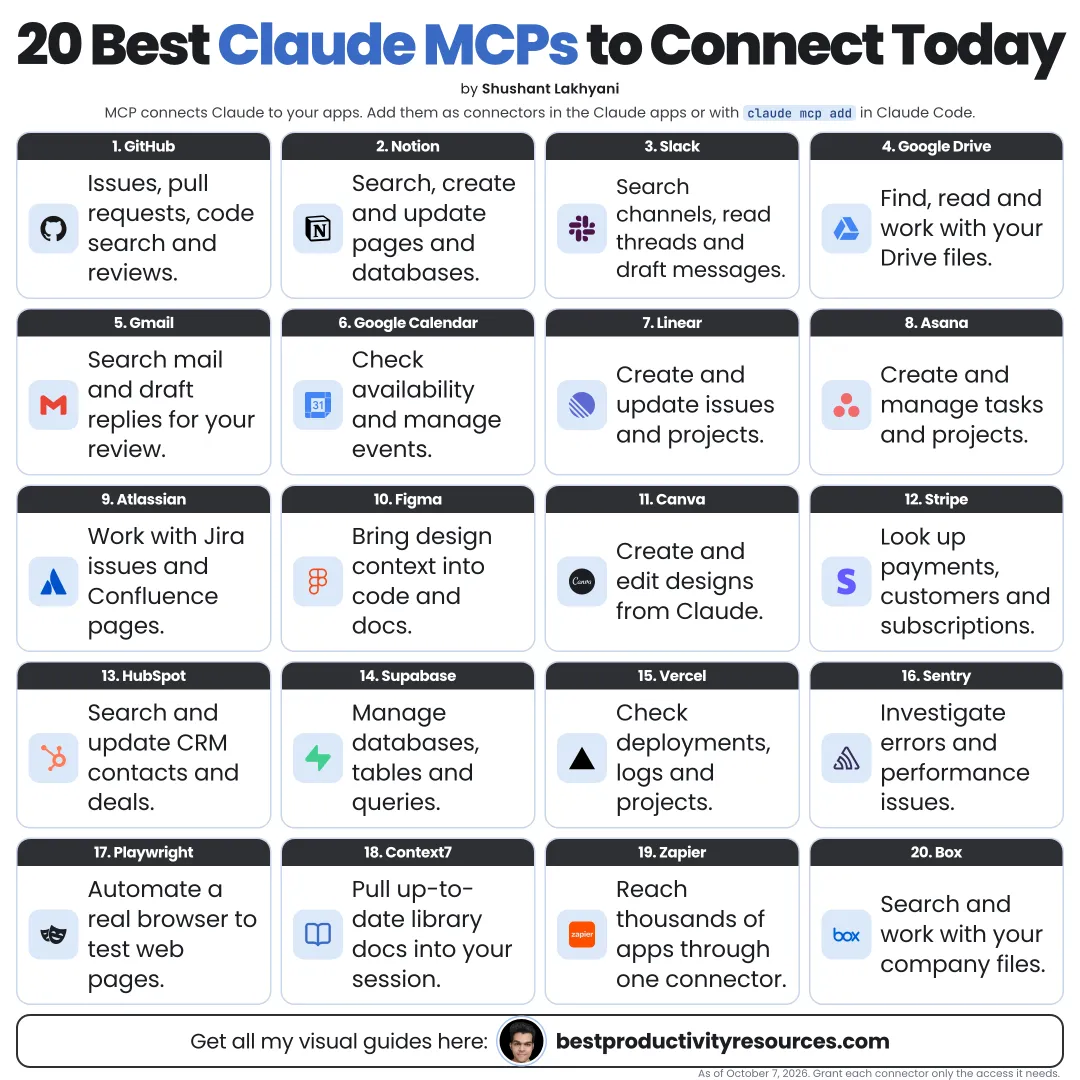
Turn Claude into an assistant that works inside your real tools with 20 official MCP connectors
13 bite-sized sections
4 min read
Free, no signup
Short answer
A free guide to the 20 best Claude MCP connectors in October 2026, all from Anthropic’s connector directory and run by the companies behind them: Gmail, Notion, Slack, Atlassian, Asana, Linear, Figma, Canva, Webflow, HubSpot, Stripe, PayPal, Airtable, Supabase, Vercel, Sentry, Granola, Zoom, Zapier, and Dropbox.
MCP, the Model Context Protocol, is an open standard that connects Claude to outside tools and data. In the Claude apps, MCP servers show up as connectors.
With the right MCPs, Claude can:
Read your documents and messages
Create new tasks and issues
Update records inside your tools
Pull in data for analysis
Act across several apps in one conversation
Every MCP here appears in Anthropic’s connector directory and is run by the company that makes the product.
An MCP gives Claude access. Your permissions set what it is allowed to do.
02
Add an MCP
Claude apps
Open Claude’s settings, go to Connectors, browse the directory, and link your account.
Claude Code
Run claude mcp add --transport http [name] [server URL], then sign in when prompted.
claude mcp add --transport http notion https://mcp.notion.com/mcp
Type /mcp in Claude Code to list connected servers. Some connector features require a paid plan of the connected service.
03
Connect email, docs, and knowledge
1 · Gmail
Search your inbox, summarize threads, and draft your replies.
Favor official servers run by the product’s own company
Check what every server can read, change, and delete
Have Claude confirm before any write or delete action
Never paste passwords or API keys into a chat
Disconnect any MCP you stop using
Treat anything tools return, such as emails or web pages, as data, not instructions. Take extra care with MCPs that read untrusted content and can also take actions.
12
Avoid MCP overload
Every MCP adds tools Claude has to choose from
Overlapping MCPs raise the odds of a wrong pick
Turn on MCPs per project or per task where possible
Five carefully chosen MCPs beat twenty connected just in case.
13
Try these prompts
“Summarize my unread Gmail and draft replies to the urgent emails. Do not send anything.”
“Turn this meeting transcript into Linear issues, one per action item.”
“Find the checkout frame in Figma and build it as a React component.”
“Show last month’s Stripe revenue by product, in a table.”
“List Sentry issues from the last 24 hours, grouped by root cause.”
“Add today’s progress to the Notion launch page.”
The golden rule
Do not connect everything. Connect the tools where your work really happens, and keep approval on every change.
Email
Docs
Tasks
Design
Sales
Data
Automation
Start with the tool you open most each day. Connect it, test one task, and then add the next one.
It has 13 sections, starting with “Understand what an MCP is”, “Add an MCP”, “Connect email, docs, and knowledge” and “Connect team chat and meetings”, plus 9 more sections.
How long does it take to read?
About 4 minutes. Every section is a short, self-contained card, so you can jump straight to the part you need.
Is this guide free?
Yes. The full guide is free to read on this page, with no sign-up.
For research and ideas only. Results vary and nothing here is a promise of income. See our Disclaimer.
See you Monday!
Weekly newsletter
Everything new, every Monday.
One short email every Monday with everything shipped that week: new free tools and websites, new guides, new free browser tools and what's new in my free Gumroad libraries, plus how the site is growing. Free, and you can unsubscribe anytime.
You sign up on Gumroad, which stores your email to send the newsletter. See our Privacy Policy.
Cookies and your choices
Visits are counted by Cloudflare Web Analytics, which sets no cookies and stores nothing on your device. An affiliate tracking script from Impact.com also loads on our pages and can set its own cookies so partner companies can credit us for sign-ups. Essential storage is always on so pages load and work correctly. You decide whether your browsing preferences are saved on your device. Read the Privacy Policy.