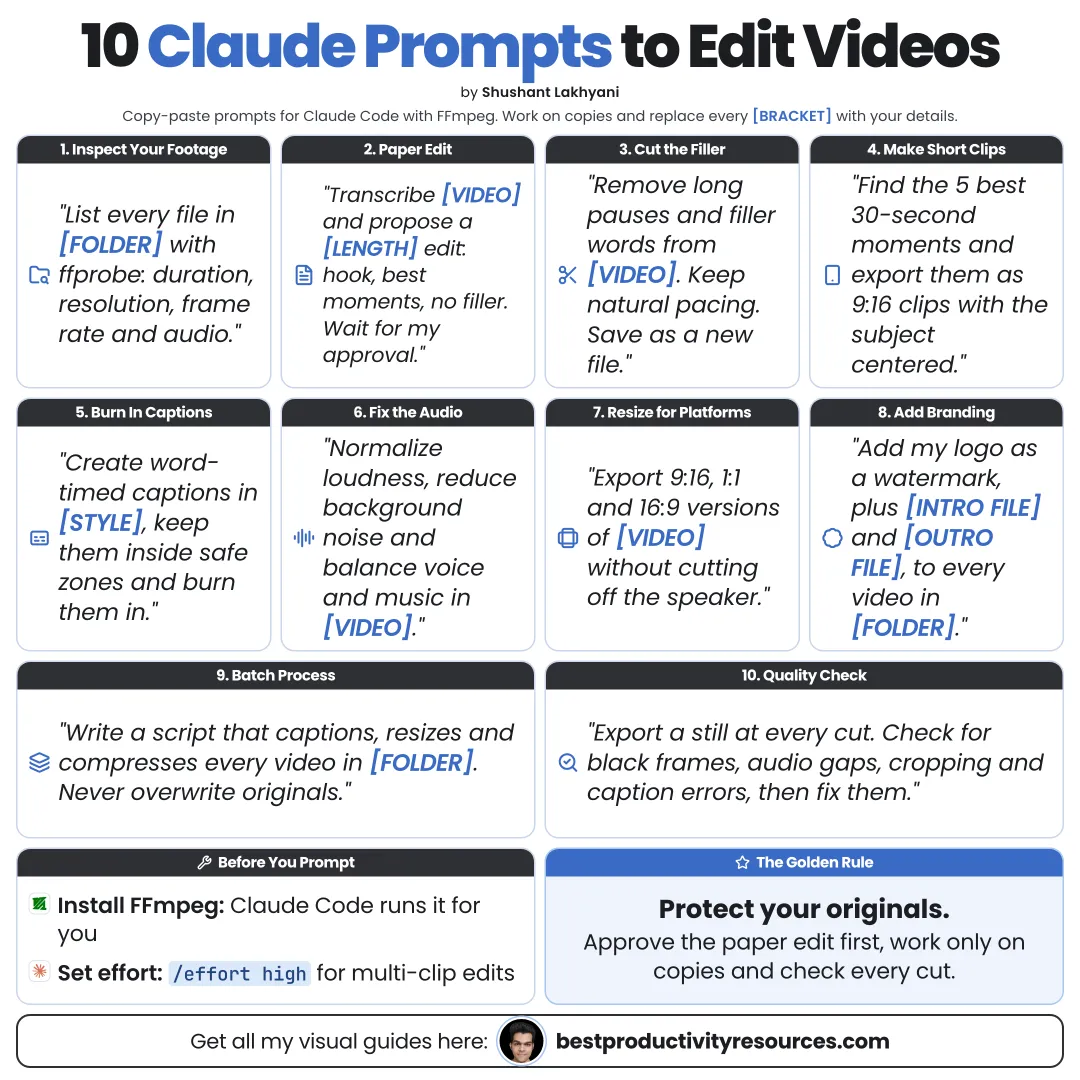
Turn Claude Code and FFmpeg into a careful video editor with ten copy-ready prompts
10 bite-sized sections
3 min read
Free, no signup
Short answer
Ten copy-ready Claude prompts to edit videos with Claude Code and FFmpeg: protect originals, inspect footage, transcribe, cut from the transcript, remove silences, assemble, check cuts, add captions, fix audio, create short clips, and export for each platform.
A transcription tool, such as Whisper or whisper.cpp
A backup of every original file
For multi-step edits, run Opus 5.5 at high effort: /model opus, then /effort high.
03
Protect and organize your files
1 · Set up safely
Create these folders: raw, proxies, transcripts, frames, cuts, and exports. Move my original files into raw. Never modify, move, or delete anything in raw. Save every output as a new, version-numbered file. Add these rules to CLAUDE.md.
04
Inspect and transcribe
2 · Inspect the files
Run ffprobe on every file in raw. Report duration, resolution, frame rate, codecs, and audio channels. Flag anything that could break clip joins, such as mixed or variable frame rates.
3 · Transcribe the clips
Transcribe every clip with word-level timestamps into the transcripts folder. List any names, brands, and technical terms you are unsure of so I can fix them.
05
Cut from the transcript
4 · Build a cut list
Read the transcripts. Mark what to remove: filler words, false starts, repeated takes (keep the best complete take), and long pauses. Remove nothing that changes the meaning. Save a table with start, end, text, and reason to cuts/cutlist.md. Wait for my approval.
5 · Trim the silences
Find silences with FFmpeg’s silencedetect filter. Propose cuts for pauses over [seconds], with a little padding so no words get clipped. Test on the first two minutes and show me before you apply it everywhere.
06
Assemble and check
6 · Assemble the edit
Apply the approved cut list to the original files, re-encoding for frame-accurate cuts. Save the result to exports/edit_v1.mp4. Keep the audio in sync and report the final duration.
7 · Check every cut
Save a frame just before and just after every cut into frames. Review them and list any jarring jump cuts, black or frozen frames, or awkward expressions, with timestamps.
07
Polish the edit
8 · Add captions
Build captions from the corrected transcript as an SRT file, with at most two lines and 42 characters per line. Then burn them into a copy of the video in our caption style, inside the platform’s safe zone.
9 · Fix the audio
Measure the loudness of the edit. Normalize the voice to about -16 LUFS for online video, lightly reduce background noise, and keep music below the voice. Save a new file and report levels before and after.
08
Repurpose the footage
10 · Pull short clips
Using the transcript, find the five strongest standalone moments between 20 and 60 seconds long. Give each one’s start and end times and opening line. Once I approve, export each as a 9:16 captioned clip to exports/clips.
09
Export for each platform
YouTube
16:9, high bitrate, and chapters in the description
Shorts, Reels, TikTok
9:16, with captions inside safe zones
LinkedIn and X
Square or vertical, with captions on
Have Claude export every version as a new file, then check each one on the device your audience will use.
10
Make edits safer and better
Edit on proxies, then export from originals
Approve every cut list before Claude applies it
Change only one thing per version
Put version numbers in every file name
Watch the whole edit before you publish
Follow the golden rule
Never let Claude cut blind. Approve the cut list, check the frames, and watch the final edit yourself.
Protect
Inspect
Transcribe
Cut
Assemble
Check
Captions
Export
Run prompts 1 to 3 on one video today. Editing speeds up once your footage is organized and transcribed.
What does “10 Claude Prompts to Edit Videos” cover?
It has 10 sections, starting with “Understand how Claude edits video”, “Set up first”, “Protect and organize your files” and “Inspect and transcribe”, plus 6 more sections.
How long does it take to read?
About 3 minutes. Every section is a short, self-contained card, so you can jump straight to the part you need.
Is this guide free?
Yes. The full guide is free to read on this page, with no sign-up.
For research and ideas only. Results vary and nothing here is a promise of income. See our Disclaimer.
See you Monday!
Weekly newsletter
Everything new, every Monday.
One short email every Monday with everything shipped that week: new free tools and websites, new guides, new free browser tools and what's new in my free Gumroad libraries, plus how the site is growing. Free, and you can unsubscribe anytime.
You sign up on Gumroad, which stores your email to send the newsletter. See our Privacy Policy.
Cookies and your choices
Visits are counted by Cloudflare Web Analytics, which sets no cookies and stores nothing on your device. An affiliate tracking script from Impact.com also loads on our pages and can set its own cookies so partner companies can credit us for sign-ups. Essential storage is always on so pages load and work correctly. You decide whether your browsing preferences are saved on your device. Read the Privacy Policy.