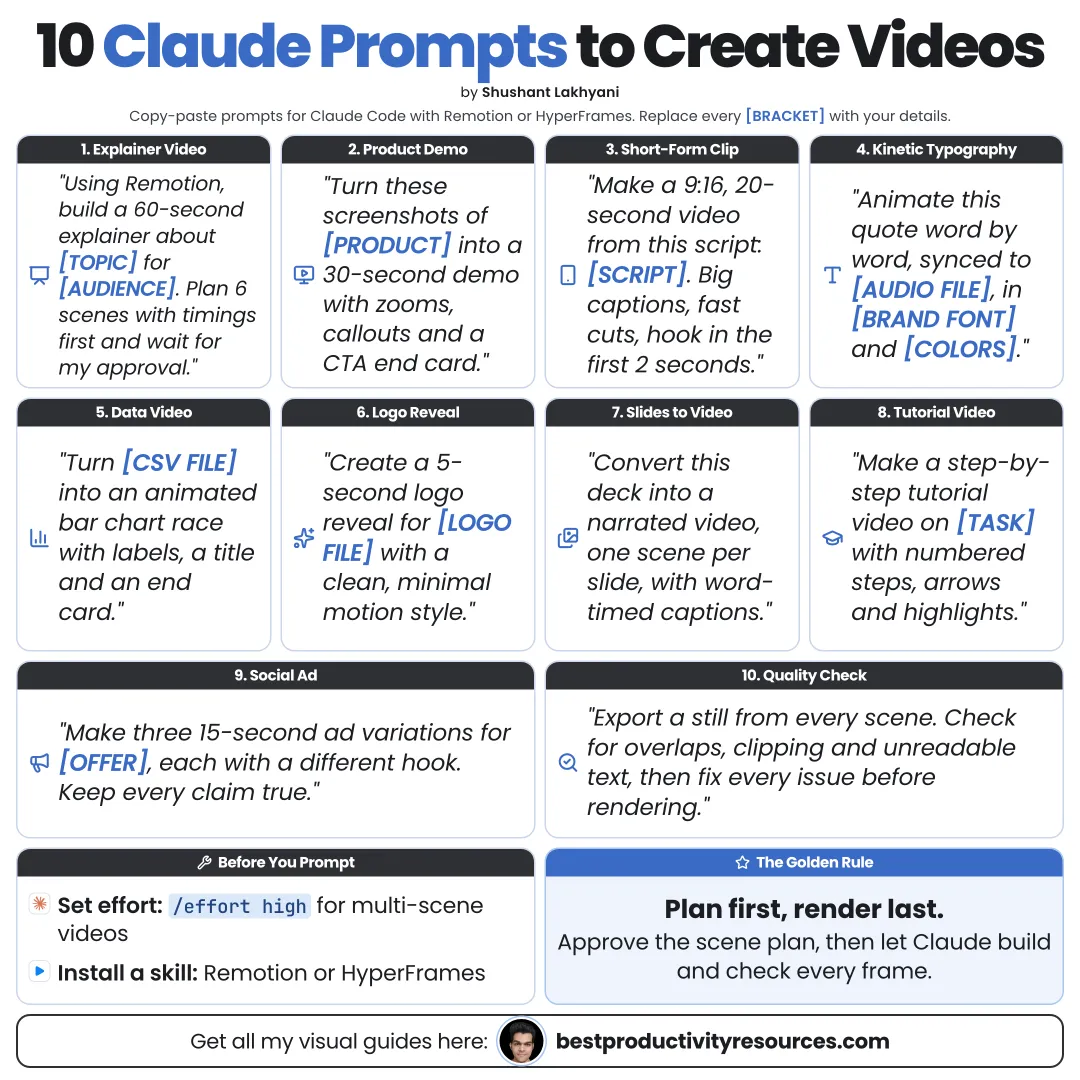
Turn Claude Code into a video studio with ten copy-ready prompts, from brief to final render
11 bite-sized sections
3 min read
Free, no signup
Short answer
Ten copy-ready Claude prompts to create videos with Claude Code and code-based video frameworks such as HyperFrames and Remotion: brief, storyboard, brand rules, first draft, captions, kinetic text, product demos, data videos, voiceover, and final review.
Claude does not generate video pixels. In Claude Code, it writes the code, assets, and commands that video frameworks like HyperFrames or Remotion render into MP4 files.
So Claude can:
Plan scenes and timing
Write animations as code
Add captions and on-screen text
Apply your brand colors and fonts
Render and re-render whenever you ask
Spin many versions out of one template
You direct. Claude builds. The framework renders.
02
Set up before you start
A paid Claude plan that includes Claude Code
Node.js and FFmpeg, installed
A video framework, like HyperFrames or Remotion
The framework’s official skill or plugin, installed
An assets folder holding files you have rights to use
For complex videos, run Opus 5.5 at high effort: /model opus, then /effort high.
03
Write the video brief
1 · Brief
Help me write a video brief. Ask me one question at a time about the goal, audience, platform, aspect ratio, duration, key message, tone, brand colors and fonts, assets, voiceover, music, and call to action. Then save the brief to brief.md.
04
Plan and storyboard the video
2 · Plan
Read brief.md. Before you write any code, propose the scene list, timing, visual style, transitions, and file structure. List every asset or decision you still need from me. Wait for my approval.
3 · Storyboard
Turn the approved plan into a storyboard table with scene number, start and end time, on-screen text, visuals, motion, voiceover line, and sound. Flag every line too long to read in its time slot.
05
Lock in brand rules
4 · Brand rules
Add our video brand rules to CLAUDE.md: colors as exact hex values, fonts and weights, logo files and minimum sizes, caption style, safe zones per platform, preferred transitions, and anything we never use.
06
Build the first draft
5 · Build
Build the video from the approved storyboard, following the brand rules in CLAUDE.md. Use only files from the assets folder. Put each scene in its own file. Start the preview and tell me how to open it.
07
Add captions and text
6 · Captions
Add captions from the voiceover script with word-level timing. Keep them inside the safe zone, at most two lines, high contrast, and in our caption style. Captions must stay on screen from the first frame to the last.
7 · Kinetic text
Make a 15-second kinetic typography video for the line “[line]”. Bring each word in on the beat, with one strong emphasis word in our accent color. 9:16, 30 fps.
08
Create special video types
8 · Product demo
Make a 45-second product demo from the screenshots in assets/screens. Place each screen in a device frame, zoom into the key feature, add a short caption for each step, and close on the call to action “[CTA]”.
9 · Data video
Turn data/[file].csv into a 30-second animated chart video. Animate the bars or lines as they grow, label the key numbers, and highlight the biggest change. Check every number against the file.
09
Review and render the final cut
10 · Review and render
Review the whole video before you render: spelling, timing, captions inside safe zones, contrast, audio levels, and every fact against the brief. List the problems and fix them once I approve. Then render the final MP4 at [resolution] and [fps] to exports/.
10
Get more from every prompt
Approve the plan before any code gets written
Change one thing per round
Give exact times: “scene 3 starts at 0:07”
Describe motion with timing: “ease out over 0.4 seconds”
Keep your rules in a CLAUDE.md file
Commit to Git after every good version
11
Check before you publish
Watch the whole video at normal speed
Confirm rights to every asset, font, and track
Disclose AI voices where rules require it
Verify every fact and number
Test it on a phone
Follow the golden rule
Do not ask Claude to “make a video.” Give it a brief, approve a storyboard, and build one scene at a time.
Brief
Plan
Storyboard
Brand
Build
Captions
Review
Render
Begin with prompt 1 today. A clear brief makes every prompt after it work better.
What does “10 Claude Prompts to Create Videos” cover?
It has 11 sections, starting with “See how Claude creates videos”, “Set up before you start”, “Write the video brief” and “Plan and storyboard the video”, plus 7 more sections.
How long does it take to read?
About 3 minutes. Every section is a short, self-contained card, so you can jump straight to the part you need.
Is this guide free?
Yes. The full guide is free to read on this page, with no sign-up.
For research and ideas only. Results vary and nothing here is a promise of income. See our Disclaimer.
See you Monday!
Weekly newsletter
Everything new, every Monday.
One short email every Monday with everything shipped that week: new free tools and websites, new guides, new free browser tools and what's new in my free Gumroad libraries, plus how the site is growing. Free, and you can unsubscribe anytime.
You sign up on Gumroad, which stores your email to send the newsletter. See our Privacy Policy.
Cookies and your choices
Visits are counted by Cloudflare Web Analytics, which sets no cookies and stores nothing on your device. An affiliate tracking script from Impact.com also loads on our pages and can set its own cookies so partner companies can credit us for sign-ups. Essential storage is always on so pages load and work correctly. You decide whether your browsing preferences are saved on your device. Read the Privacy Policy.